
Enroll Personal/BYOD Android Devices in Microsoft Intune
Step 1: Manage Google Play Account in Intune
Log into endpoint.microsoft.com > Devices > Enrollment > Android > Click on Manage Google Play > Check the box ” I grant Microsoft permission to send user and device information to Google.

Click Launch Google to connect now. (Note: Use a dedicated work account for this task which can be used by IT avoid using personal account)

Step 2: Choosing the appropriate Android enrollment profile.
Once the Google Manage play account is being setup now we have to select the right enrollment profile.
Here we will select the BYOD/Personally-owned Devices with work Profile

Step 3: Install Intune Company Portal App from Google Play Store at the End user Android device

Once Intune Company Portal is installed it will prompt you to log in with your work email account– Please Log in with your work email account and hit next

Click on Begin and it will commence the following Tasks

Once your personal device is enrolled what Intune Admins cannot see – Please find it below
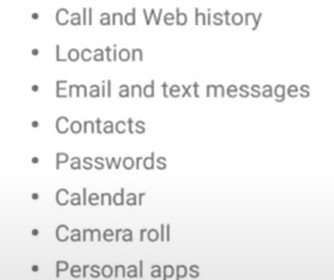
Once your personal device is enrolled what Intune Administrator can see – Please find it below

Once Enrolled Users will see work Folder with Apps Managed by Intune Administrator

Step 3: Add Applications to your Android Devices via Intune Portal
In endpoint.microsoft.com > click Apps > click Android > click create > App type “Managed Google Play App ” > select Applications “Outlook and Microsoft Teams” >

Once the two Applications have been selected – we can see those apps at the bottom however they are not Assigned

Assigned Applications to Android Devices
Click on Microsoft outlook > click on properties > click Edit Assignment

Now we have few options either we Add a Group, Add all users or Add all devices- to keep things simple lets select all users and all devices and hit Save.

Once in the App properties, Assignment has been edited we will see the outlook App being assigned.

The Outlook and MS Teams Applications once synced will also be displayed at the end user Android device
Note: we have to edit assignment in App properties for every Application to be installed on the device.
Blog written by IT Engineer
Mazhar Shah

Syed A Raza
Excellent thanks 👍
Mazhar Shah
Thank You