
Fixing Non-Compliant Devices by Remediation Scripts – Intune
Let’s go step-by-step on how to create a PowerShell remediation script in Microsoft Intune to fix non-compliant devices due to Windows Update issues.
⚙️ Step 1: Understand Proactive Remediation In Intune:
- Detection script → checks for a problem (returns exit code 0 if OK, 1 if fix needed)
- Remediation script → runs only if detection script finds a problem
Step 2: Sample Detection Script:
This script checks if Windows Update service is running and if updates are pending.
# Detection Script: Check Windows Update status
Detection Script: Check Windows Update status
$WUService = Get-Service -Name wuauserv -ErrorAction SilentlyContinue
$PendingUpdates = (New-Object -ComObject Microsoft.Update.Session).CreateUpdateSearcher().Search(“IsInstalled=0”).Updates.Count
if (($WUService.Status -ne ‘Running’) -or ($PendingUpdates -gt 0)) {
Write-Output “Windows Update service not running or updates pending.”
exit 1 # Non-compliant
} else {
Write-Output “Windows Update service running and no pending updates.”
exit 0 # Compliant
}
Step 3: Sample Remediation Script
If the detection script returns 1, this script will:
- Start the Windows Update service
- Clear the Windows Update cache (optional)
- Trigger update scan and installation
Remediation Script: Fix Windows Update issues
Try {
Write-Output “Starting remediation for Windows Update.”
# Start Windows Update service
Set-Service -Name wuauserv -StartupType Automatic
Start-Service -Name wuauserv

# Optional: Reset update cache
Stop-Service wuauserv -Force
Remove-Item -Path "C:\Windows\SoftwareDistribution\Download\*" -Recurse -Force -ErrorAction SilentlyContinue
Start-Service wuauserv

# Trigger update scan and install updates
$UpdateSession = New-Object -ComObject Microsoft.Update.Session
$UpdateSearcher = $UpdateSession.CreateUpdateSearcher()
$SearchResult = $UpdateSearcher.Search("IsInstalled=0")

if ($SearchResult.Updates.Count -gt 0) {
    Write-Output "Found $($SearchResult.Updates.Count) updates. Starting installation..."
    $Downloader = $UpdateSession.CreateUpdateDownloader()
    $Downloader.Updates = $SearchResult.Updates
    $Downloader.Download()
    $Installer = $UpdateSession.CreateUpdateInstaller()
    $Installer.Updates = $SearchResult.Updates
    $Installer.Install()
} else {
    Write-Output "No updates available."
}

Write-Output "Remediation completed successfully."
}
Catch {
Write-Output “Remediation failed: $_”
exit 1
}
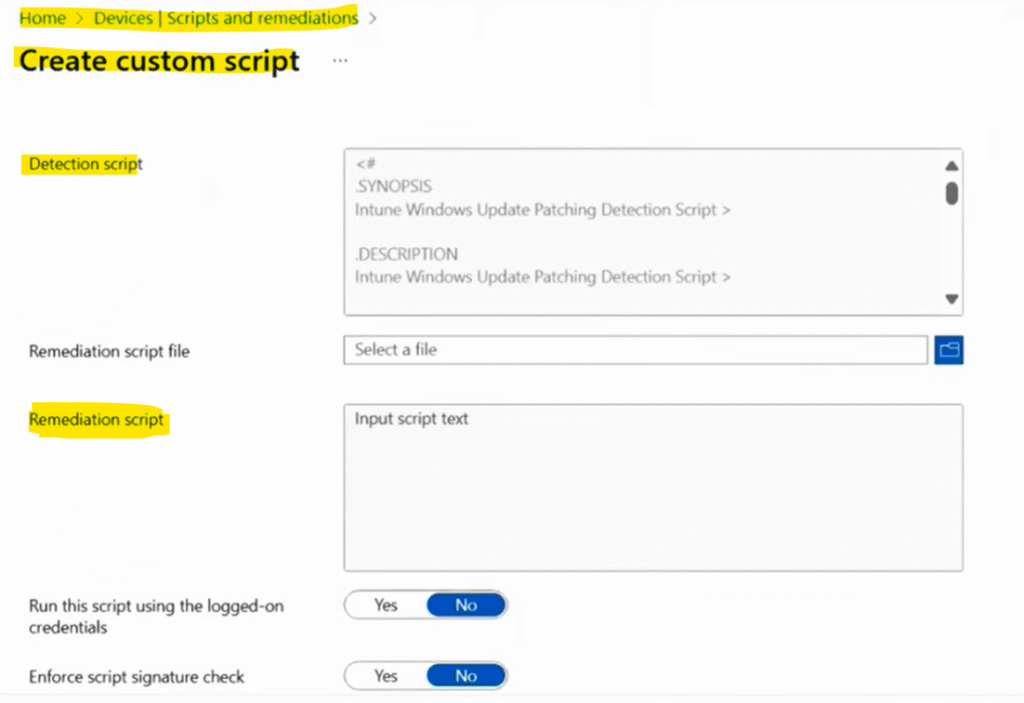
You can save the above two scripts in your computer and later upload in Intune as shown below
Step 4: Upload Both the Scripts to Intune
Go to Microsoft Intune admin center > Devices > Windows > Manage Devices > Scripts and remediation

Click + Create script package
Name: Fix Windows Update Non-Compliant Devices
Description: “Checks and remediates Windows Update service issues.”
Upload: (click upload button and browse where you have saved your scrips)
Detection script (step 2)
Remediation script (step 3)
Assign to a device group (e.g., Windows 10/11 devices)
Set schedule (e.g., every 1 day or 2 days)
Click Create
📊 Step 5: Monitor Results
After deployment:
- Go to Reports → Endpoint analytics → Proactive remediations
- See which devices are:
- ✅ Compliant (No issue found)
- ⚙️ Remediated (Fixed)
- ❌ Failed (Needs attention)
