
Configuring iSCSI Storage Target and Initiator in Windows Server 2016
Lab:
We have two server running windows 2016 Datacentre 1: DC01 as iSCSI Target and 2: Server1 as iSCSI Initiator
1: Adding second server in server Manager on DC01
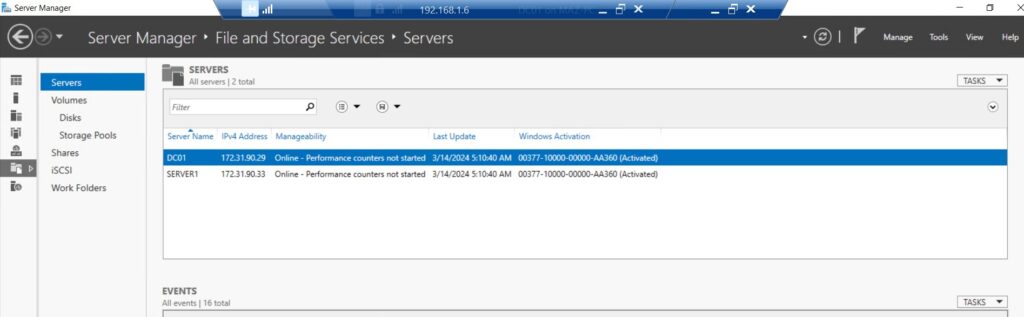
2: Right click on DCO1 server and click Add Roles and Features

3: Select Role Based

4: Expand File and Storage > select iSCSI Target Server > hit Next

5: Click Install

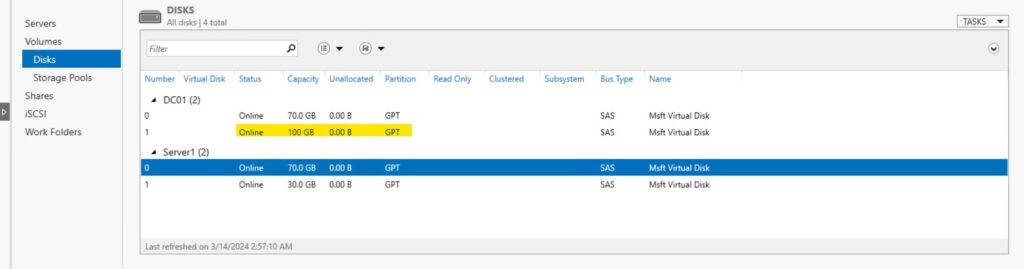
6: I have added 100 GB Disk in DC01 which we will use as iSCSI Disk/Storage for our member server Server1
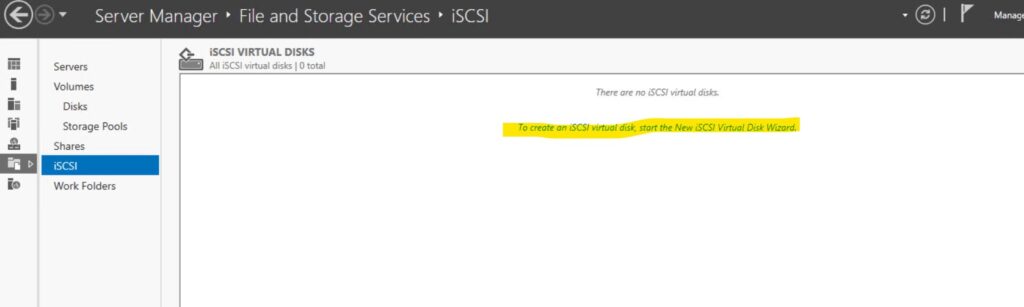
7: In DCO1 > Server Manager > File and Storage Services > Click iSCSI > click to create a iSCSI Virtual Disk wizard
8: Select the Server DCO1> Select the second disk which is E drive (100 GB) and Click Next

9: Give the iSCSI Disk Name for example : iSCSI Disk V1> Hit Next

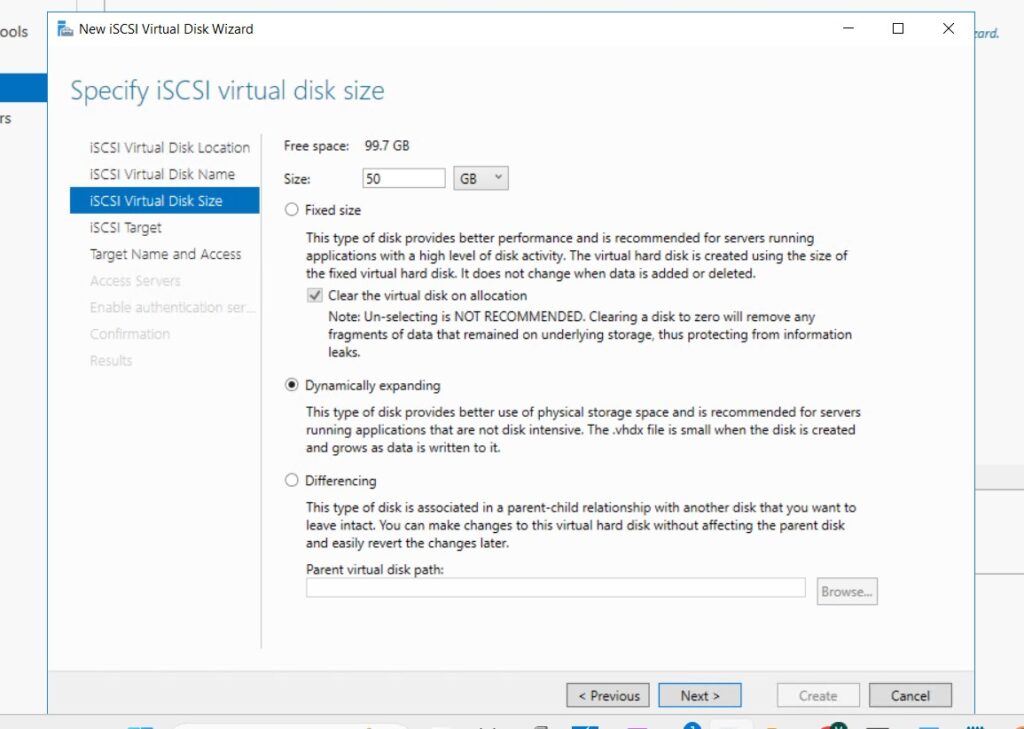
10: Grant size to your iSCSI Disk from total 100 GB Disk > I am granting 50GB for now > Click Next >
11: Give Target a Name for example DC01 Target

12: Add iSCSI Access server > here we will add the details IQN from our member server Server1
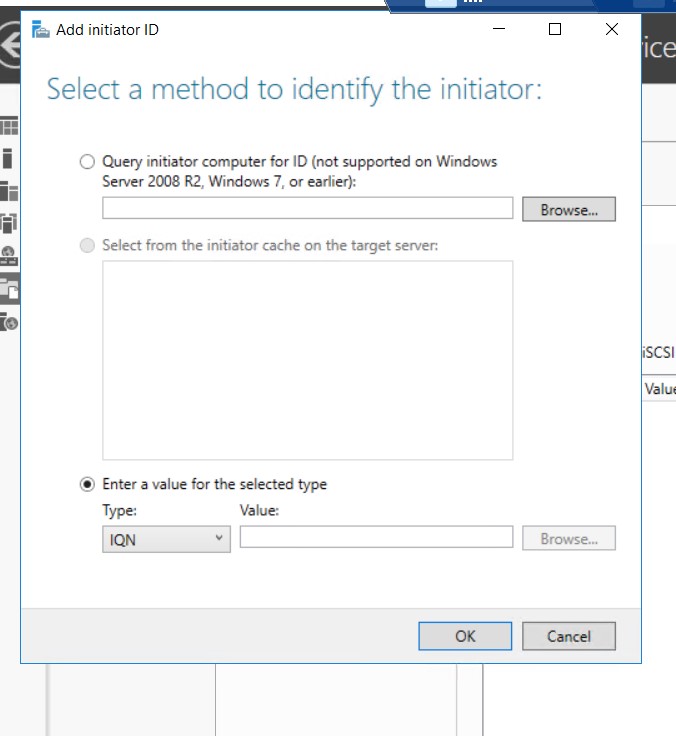
13: Log in to member Server > Server1 > Control Panel > iSCSI initiator > in configuration tab > copy the Initiator Name
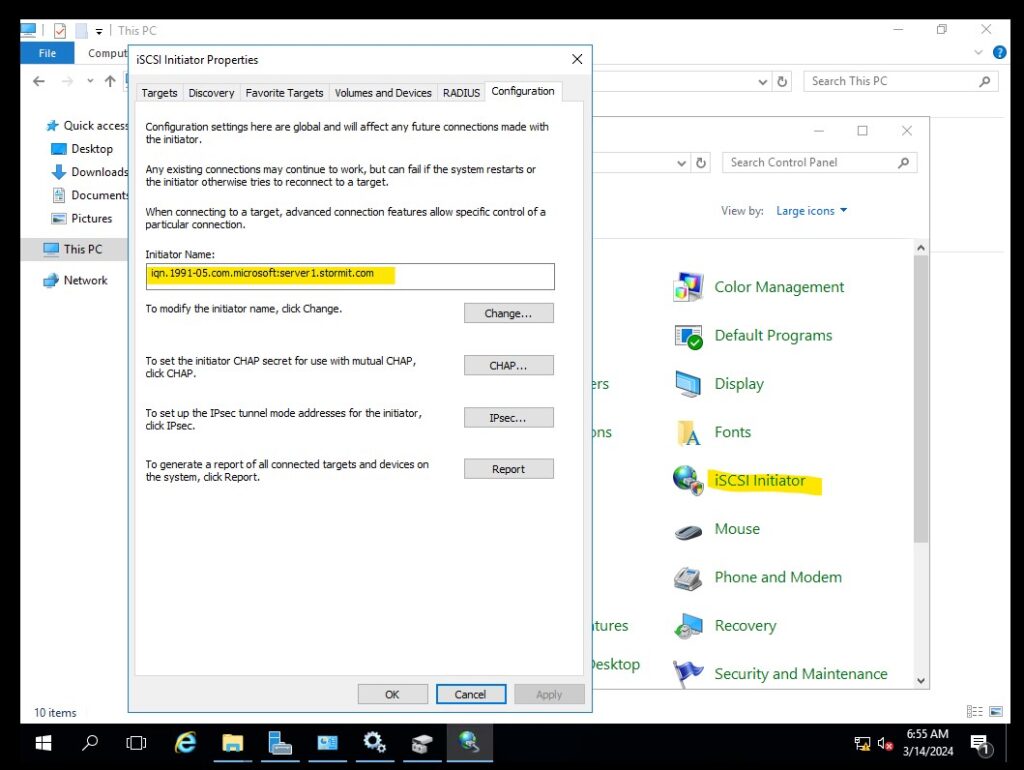
14: Now return back to DCO1 Paste that IQN which you have just copied from the member server Server1 > Hit Next

15: Click Next and Create iSCSI Virtual Disk

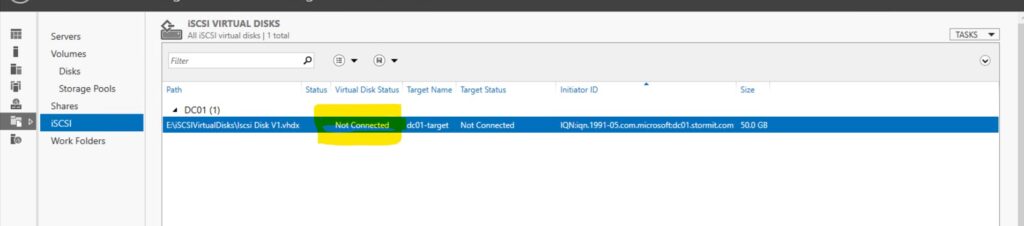
16: Now on DC01 > server manager > iSCSI > You will see the disk but its not connected
Note: You will also need to Right Click on the Disk make it Online > Right click again and create a simple Volume too
17: Now Log in to the Member server > control panel > iSCSI Initiator > Discovery Tab > Click Discover Portal > Enter the IP Address of the DCO1/ iSCSI Target Server

18: In the Member server > control panel > iSCSI Initiator > Discovery Tab > Click Discover Portal > click advance > select Microsoft iSCSI initiator > Enter the IP address of server1 in Initiator IP

19: Now Log in to the Member server > control panel > iSCSI Initiator > Targets Tab > enter DC01 and click quick connect > below you will see IQN for iSCSI Target (dc01) > click connect
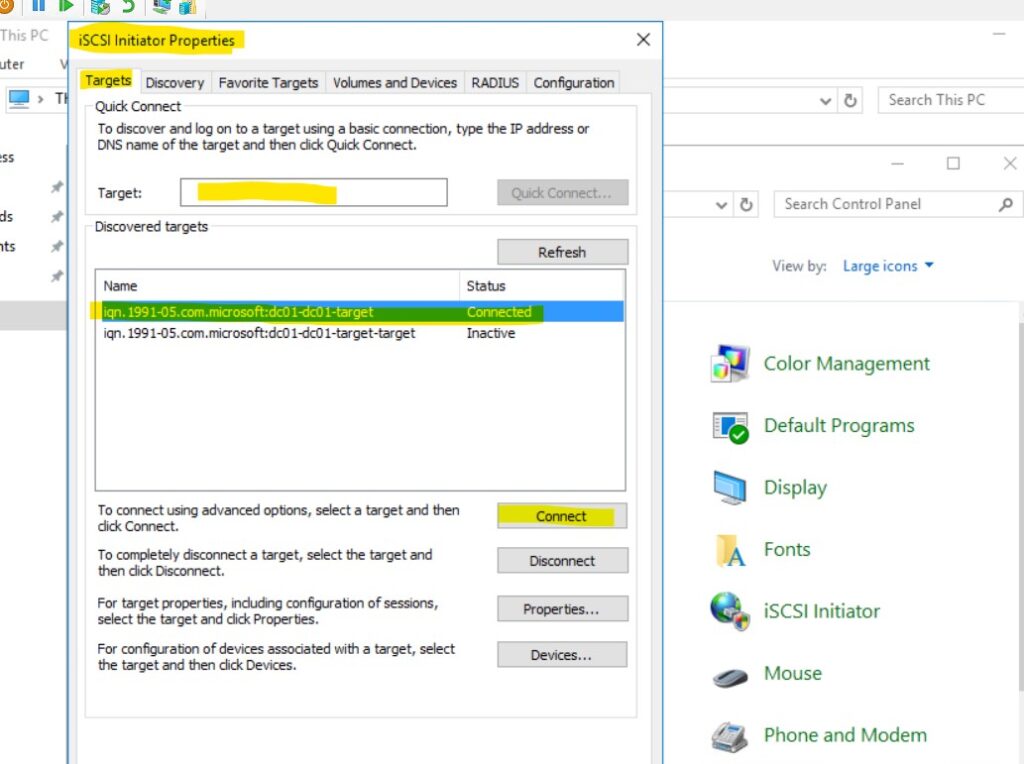
20: You will see a new drive connected to the member server 50 GB with Bus Type : iSCSI


Mustafa shah
This blog is a goldmine of knowledge