
Adding Virtual Disk in Hyper V- VM and Mounting Them
Open computer Management > storage > Disk Management > Right click > Create VHD
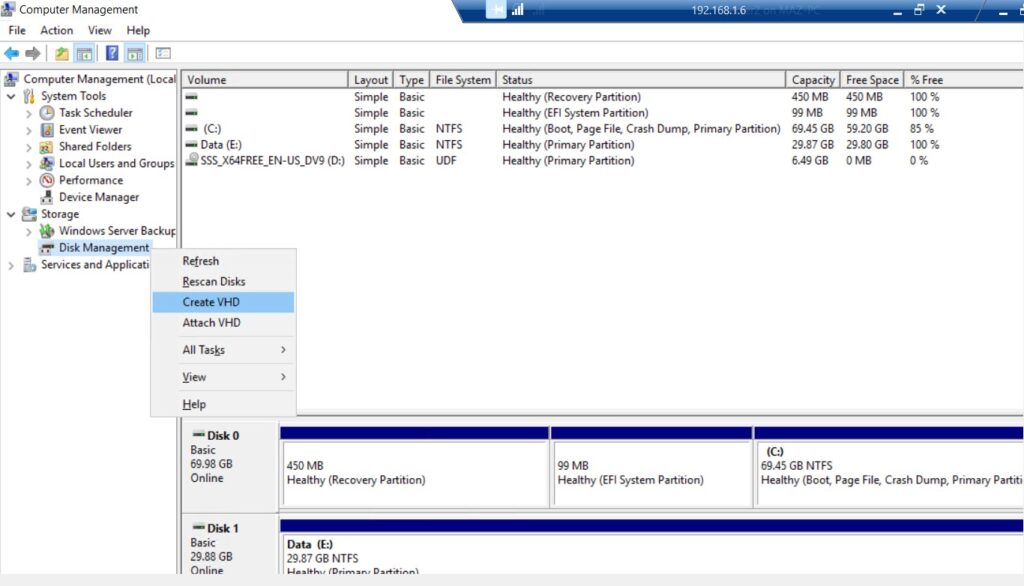
Browse the location where you want to save your virtual disk > Allot space > select VHDX> select Dynamic > hit OK

Once the disk it created You will see Unknow Disk > Right click Initialize Disk > Select GPT > hit OK

Once the Disk is Initialized > Right click > create a new simple Volume > Hit Next

Format the Drive > Select NTFS > You can give name to your Volume for example My Data > hit Next

You can now see the new Drive we just created My Data (I:) as new partition in my computer

You can Right click on the I drive and click Eject – it simply acts as an external USB drive

You can even Mount this My Data VHDX to another server on your network too, Simply Right click and hit Mount

